So you’ve imported your team employees into Shiftie and now need to set up their leave policies and allowances? You can do this in Shiftie by going to How do I manage leave policies? We can also save you time and simplify the process by using the Employee Leave Settings import tool on the Team Leave page.
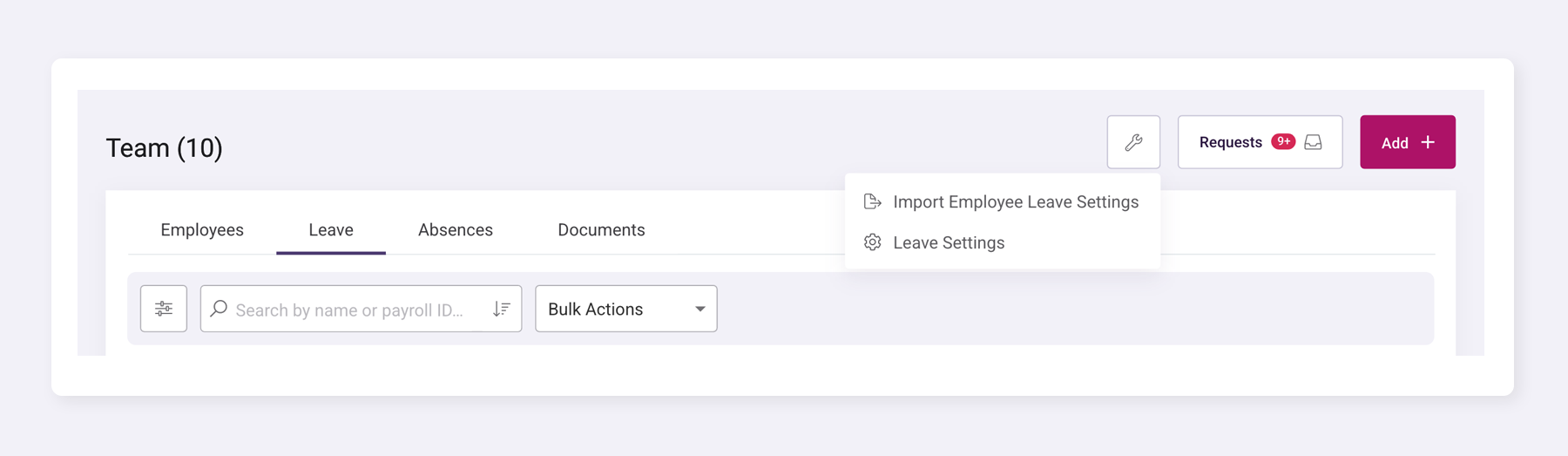
First, you’ll need to go to Team > Leave and find the tool menu in the top right, indicated by a spanner icon. Click the button and a menu will open. Click on the “Import Employee Leave Settings” action to open the import dialog.
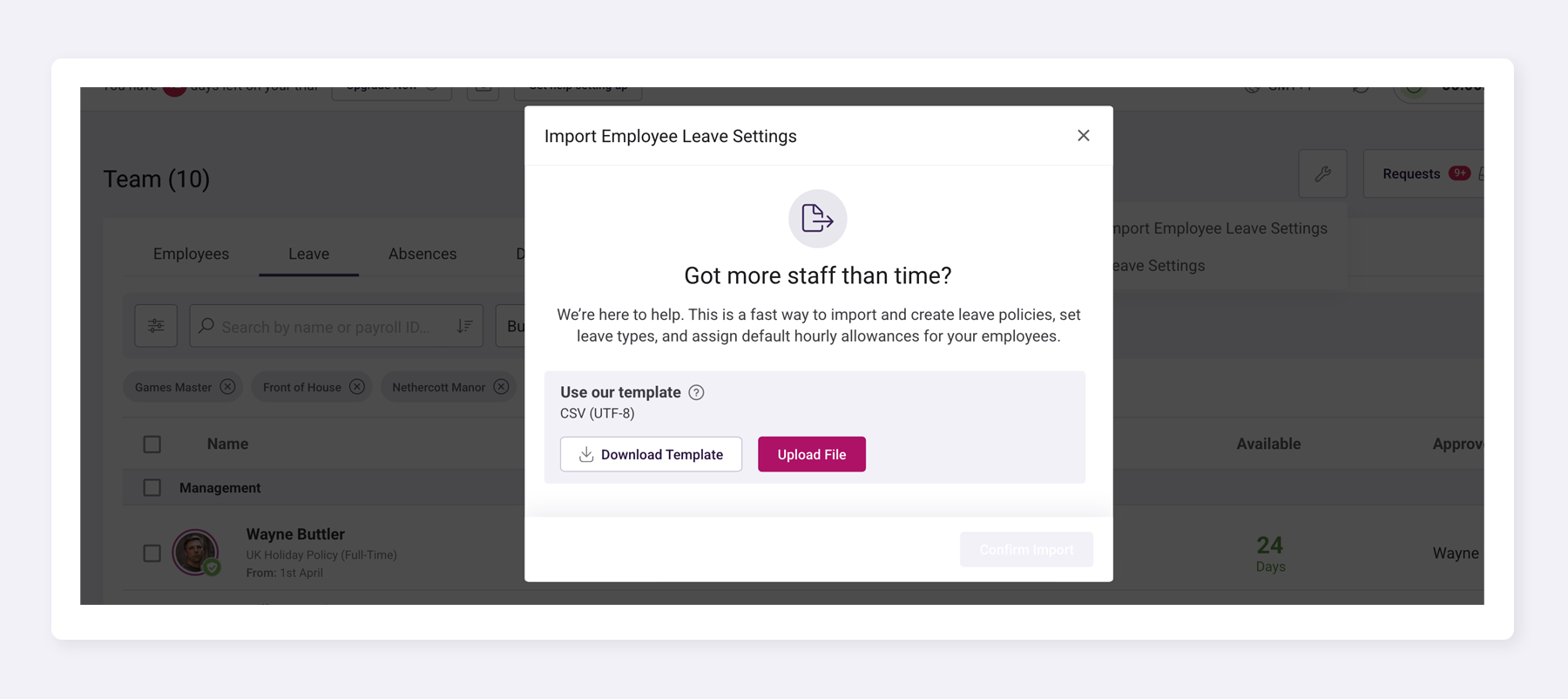
Next, you’ll need to download the CSV template and open it with a spreadsheet application such as Microsoft Excel.
To find the Employee References for the CSV import, you’ll need to download the Employees export from the Team > Employees page. Click the spanner button in the top right and choose “Export Employees”. You can filter this export to the required employees you wish to import leave settings for. Once filtered, click the “Export Employees” button at the bottom and then open the file in your chosen spreadsheet application. Copy the Reference column and paste it into the Employee Leave Settings file.
Continue filling in the remaining fields accurately for each employee. Below is a list of definitions for each field.
Employee leave hours used per day
This is the default leave hours deducted per day a leave request covers. For example, if set to 8, then if a leave request covers 3 days, it will deduct 24 hours from the employee's allowance.
Policy Start Date
This is the date the leave policy starts. For example, ‘2026-04-01’ means the employee’s leave years will run from the 1st of April every year.
Annual Leave Allowance
This is the total of leave allowance the employee can use for their default leave type per year. This must be a number only.
Pro-rata Allowance
This is the allowance the employee currently has available to use. If the employee has taken leave in other systems or joined your company partway through the year, this allowance should be deducted from the Annual Leave Allowance and input here.
Shiftie will automatically create a leave adjustment to balance the employee’s leave allowance to this figure.
Once the CSV file is complete, head back to Shiftie on the Team > Leave page and open the Import Employee Leave Settings dialog. You’ll want to click the “Upload File” button this time and choose your import file. Shiftie will run some validation checks and inform you of any issues with your file, these will need to be amended before continuing.
Once the file has been validated, Shiftie will ask you to confirm that you agree to overwriting the existing settings employees have. Click the checkbox and then click the “Confirm Import” button, and watch the magic happen as we automatically update all of the imported employee leave settings.
Don’t forget to adjust your general leave settings here.
Was this article helpful?
That’s Great!
Thank you for your feedback
Sorry! We couldn't be helpful
Thank you for your feedback
Feedback sent
We appreciate your effort and will try to fix the article