We’re glad you asked!
If you’re new to any software, several different terms and features can sometimes feel confusing at first. Understanding the differences is key to getting the most out of your system.
The good news is that with Shiftie, everything is designed to be simple and intuitive. Once you know what you’re looking for, it all quickly falls into place.
To make things even easier, we’ve created a handy guide below to help you clearly understand and differentiate between the key terms you’re likely to come across.
Locations
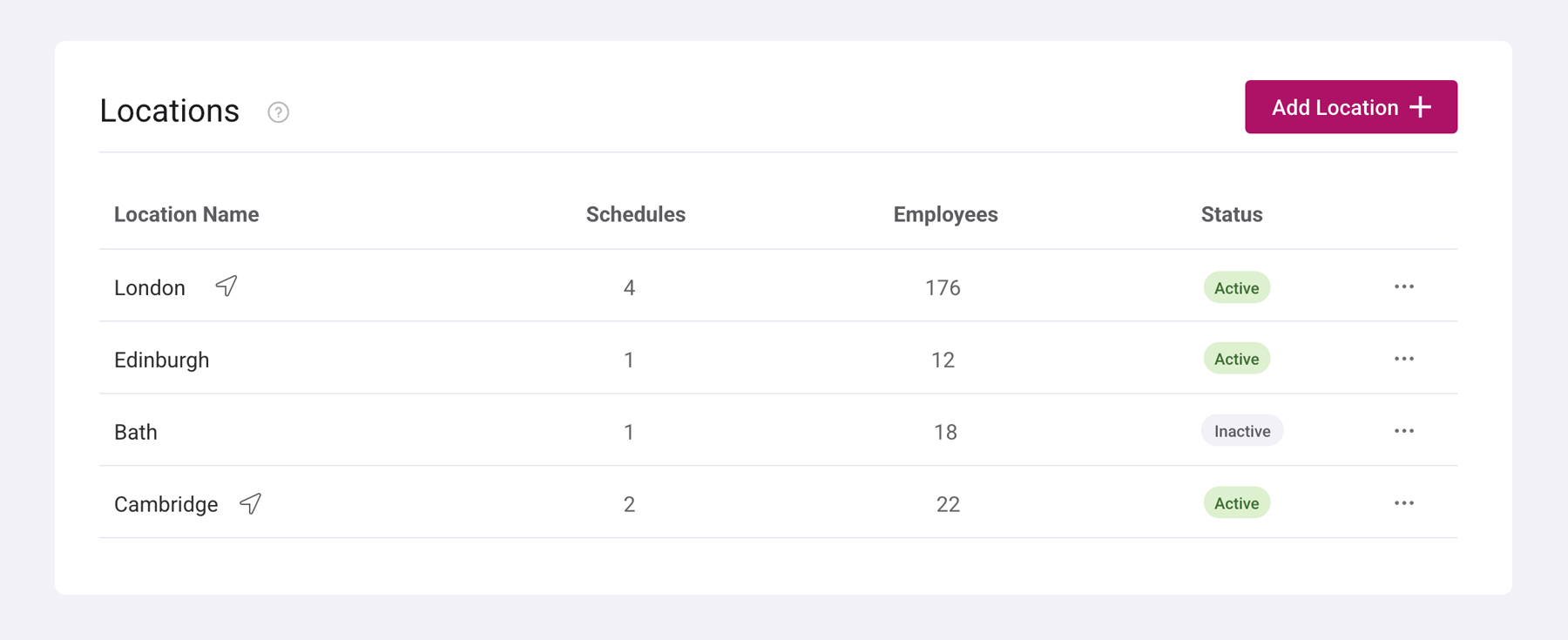
Pretty much as it sounds, a location is the place where you and your employees are working from. This could be a physical site such as a pub, restaurant, dental practice, or office. It can also include remote working locations, such as an employee’s home.
Employees can work across multiple locations depending on your business setup. However, each shift can be assigned to only one location at a time, ensuring clear visibility into where your team is scheduled to be.
Importantly, locations also control how employees clock in and out. This can be done either via a designated clock-in portal or through the mobile app. If GPS tracking is enabled, employees must clock in and out within the defined radius of their assigned location, helping ensure accurate time tracking and compliance with your business rules.
You can learn more about managing locations here.
Schedules
You guessed it, a schedule is what you use to assign shifts to your staff. It’s also commonly known as a rota, roster, timetable, or shift planner; different names, same idea.
Schedules are linked to a specific location, helping you organise staff based on where they’ll be working. You can create multiple schedules within each location, giving you the flexibility to manage different teams, departments, or working patterns as needed.
You can learn more about managing schedules here.
Areas
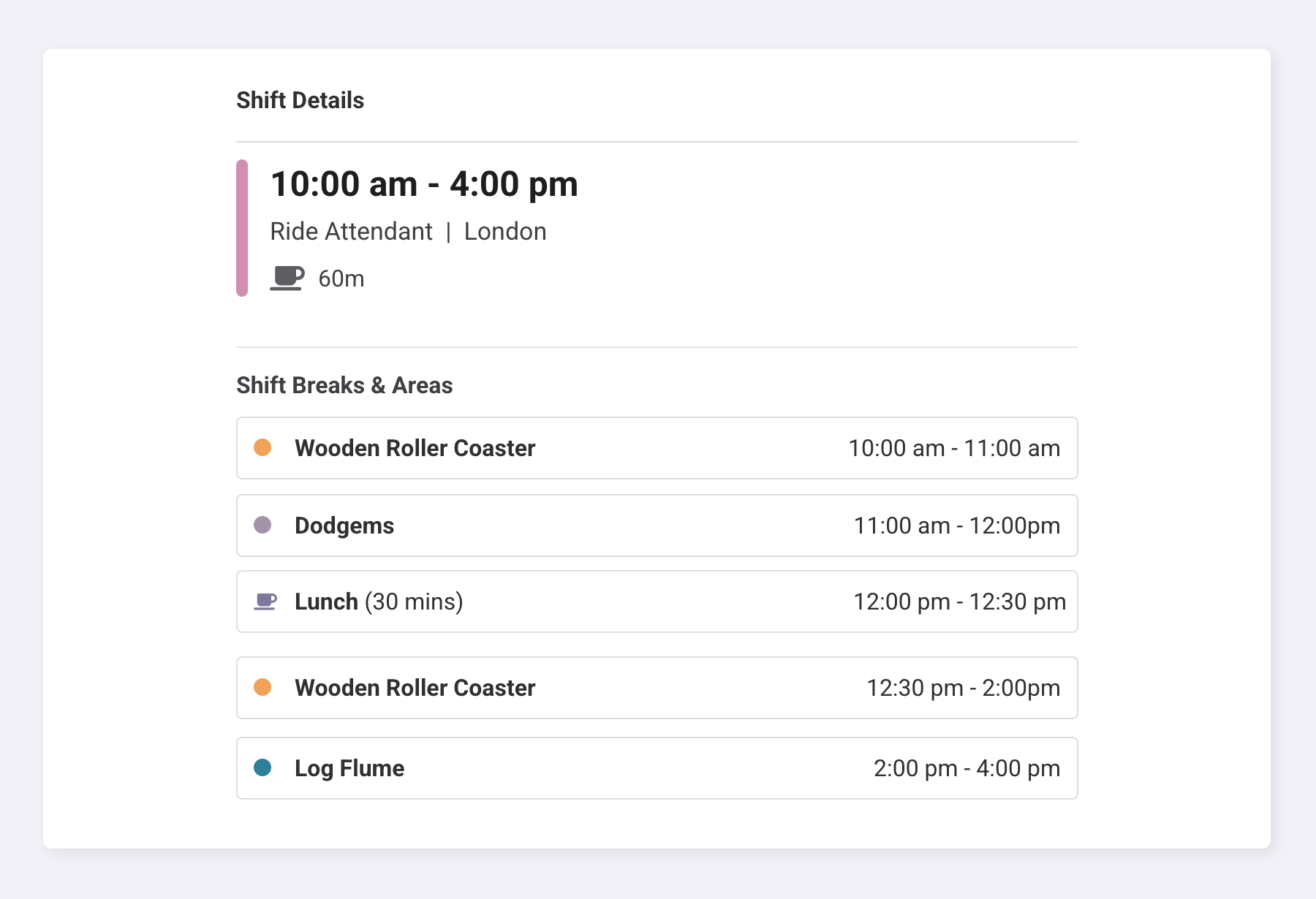
Areas represent the different places where an employee can work during a shift. This feature is completely optional, but it allows you to add extra structure and detail to your shifts if needed.
Often referred to as micro-scheduling, areas allow you to break a shift down into more detailed segments, so you can specify exactly where an employee should be at different times throughout their shift.
For example:
- 10:00–11:00 – Wooden Roller Coaster
- 11:00–12:00 – Admissions
- 12:00–13:00 – Break
- 13:00–14:00 – Dodgems
Groups
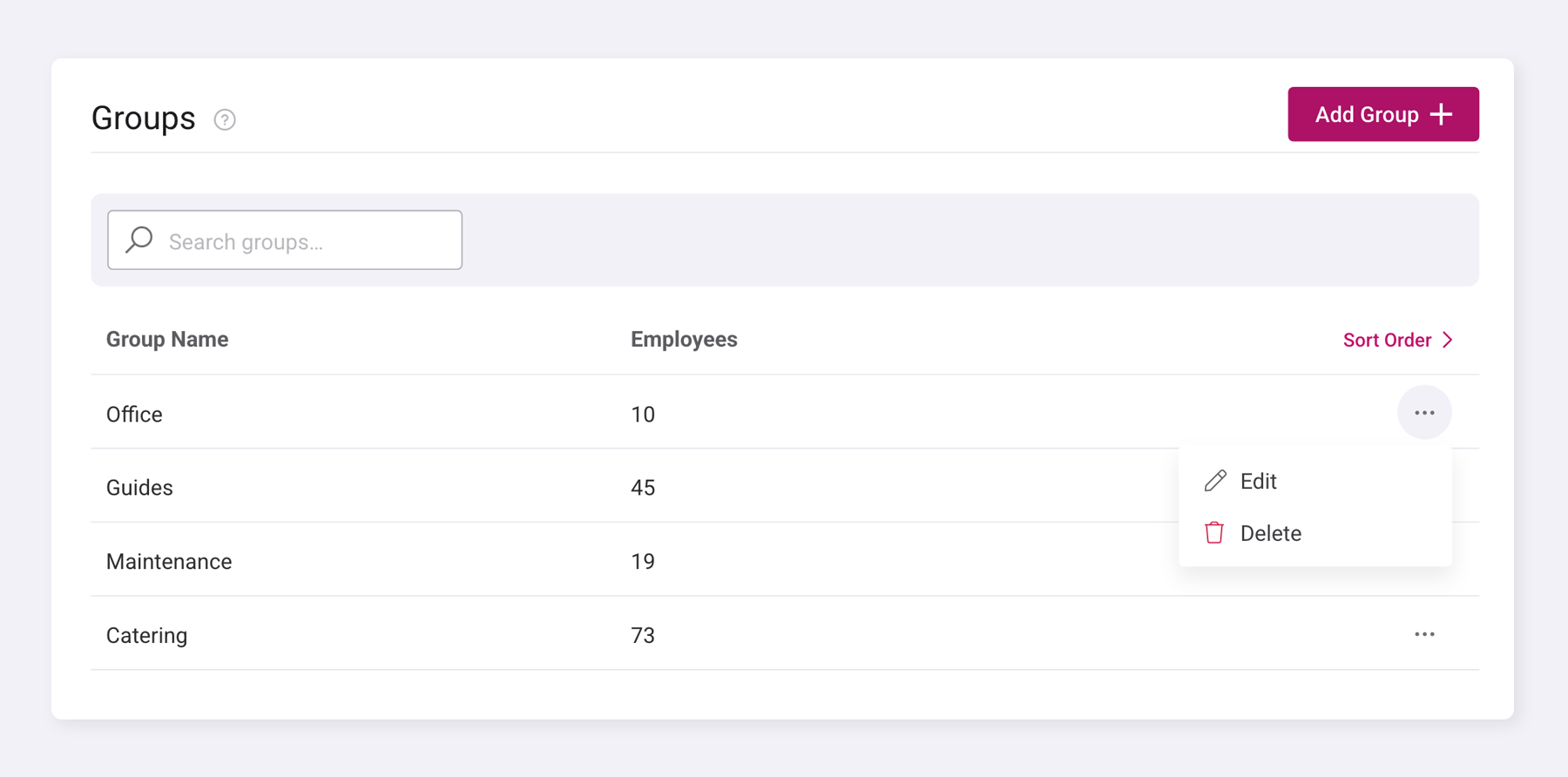
Groups are a simple way of organising your departments within Shiftie.
You can assign employees to a group during setup, helping you structure your team more clearly. Groups allow you to display your schedules in an organised way, making it easier to view and manage staff within specific departments or areas of your business.
You can learn more about managing groups here.
Was this article helpful?
That’s Great!
Thank you for your feedback
Sorry! We couldn't be helpful
Thank you for your feedback
Feedback sent
We appreciate your effort and will try to fix the article